
The Floor Map (Beta)
Seeing your room as a live map instead of a list of tables.
The Floor Map (Beta)
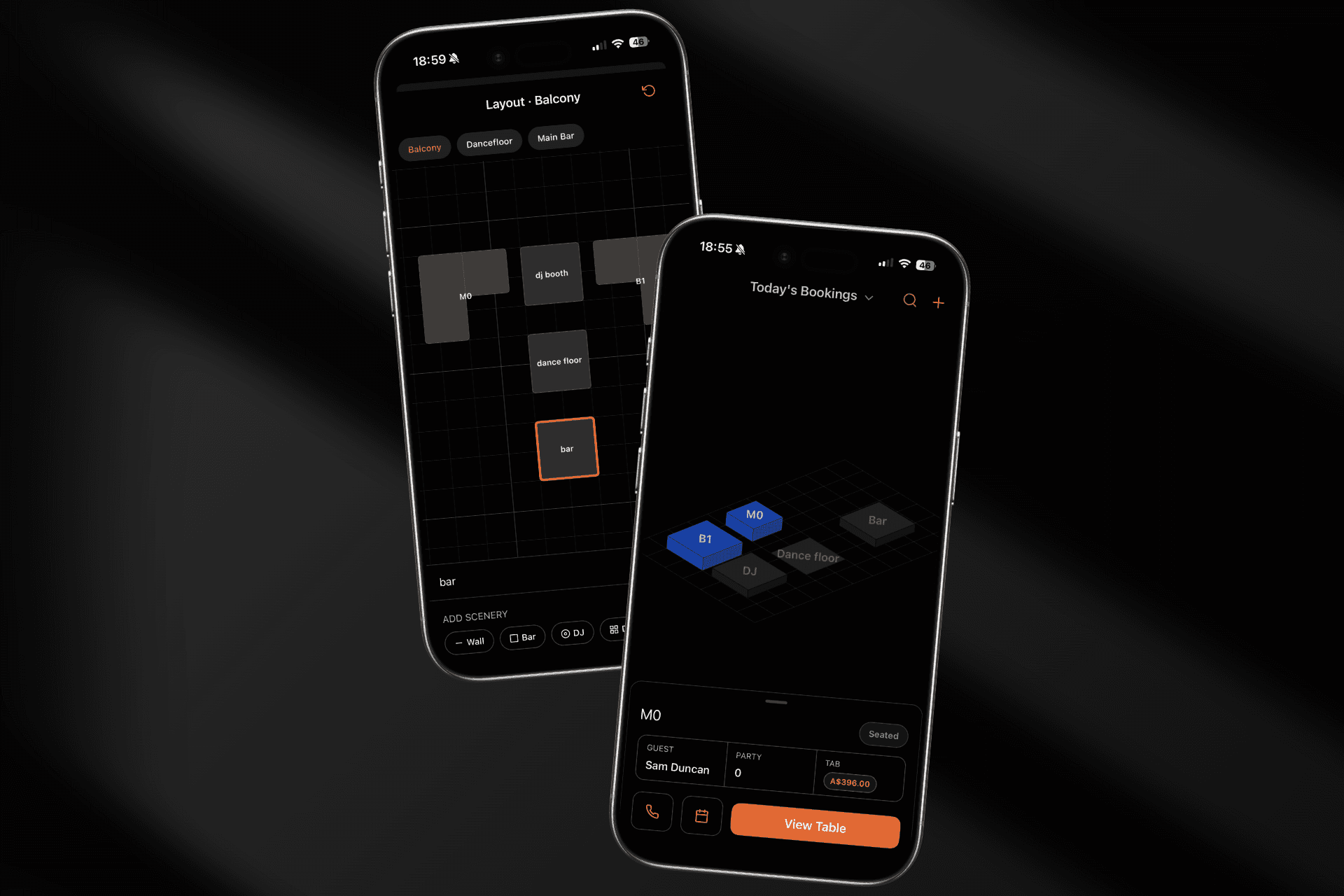
The floor map shows your venue as the room actually looks — tables laid out in their real positions, with the bar, dance floor and DJ booth where they belong — instead of a list of table cards. During a busy service it's often faster to find "the table by the DJ booth" on a map than to scan a list for its name.
Beta. The map is being rolled out venue by venue. If you don't see a map button on your Tables tab, it isn't switched on for your venue yet.
Opening the Map
Tap the map button — the round orange button in the bottom-right corner — on either the Tables tab or the Bookings tab. Tap it again to go back to the list. The two views show the same live data, so nothing is hidden by choosing one over the other.
Getting Around
- Drag to pan around the room.
- Pinch to zoom in and out.
- Section chips along the bottom switch between the areas of your venue — the same sections you already use on the Tables tab.
The map never shrinks table labels below a readable size. A large section will overflow the screen and pan rather than zoom out to the point where you can't read it.
Reading the Map
Tables are drawn as solid blocks in their real shapes — rectangles, round tables, booths with a backrest, and corner couches. Scenery like the bar, DJ booth, dance floor, stairs, entrance, restrooms and coat check is drawn in a neutral grey so it recedes behind the tables.
Each table's colour tells you its status at a glance — seated, booked, or vacant. You choose those colours yourself; see Table Colours on the Map.
Tapping a Table
Tapping a table opens a card showing:
- Guest — who the booking is for
- Party — how many of the party have arrived and checked in
- Tab — the running total, once they're seated
Below that are the actions available for that table right now — calling a runner, opening the booking, seating the party, or jumping to the table's menu and tab. These are the same actions, with the same permissions, as the table's detail screen. The map is another door onto them, not a different set of rules.
Troubleshooting
There's no map button. The map is in beta and hasn't been switched on for your venue yet.
A table is missing from the map. It hasn't been placed in the layout. An Owner or Manager can add it — see Editing Your Floor Map.
The map looks empty but the list has tables. You may be looking at a section with no layout drawn yet. Check the section chips along the bottom.
Seating from the map didn't work. The map applies the same rules as the booking screen — a table already occupied by another booking, or a booking with no guest attached, can't be seated. Open the booking to see why.