
Managing Payments
Managing payments from the Orders Screen (Bump Screen).
VIEW PAYMENT STATUS
Knowing whether an order is paid or requires payment will help you prioritize your workflow.
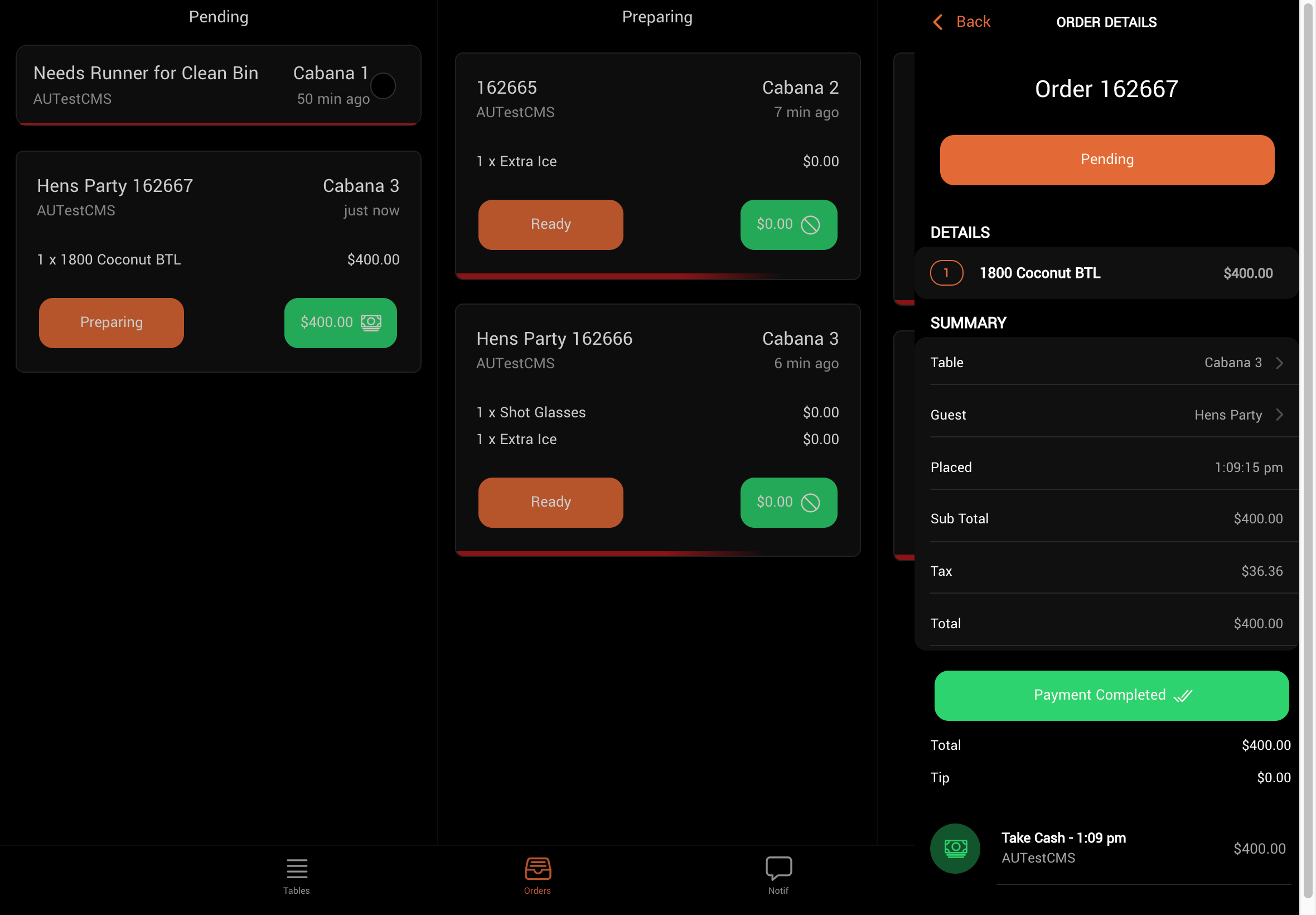
An order is considered paid when the payment badge at the bottom right of the order card is highlighted in green. If only a partial payment has been made, the badge will remain grey until the full amount is received.
To view payments on an order:
Tap the order card to open the order details.
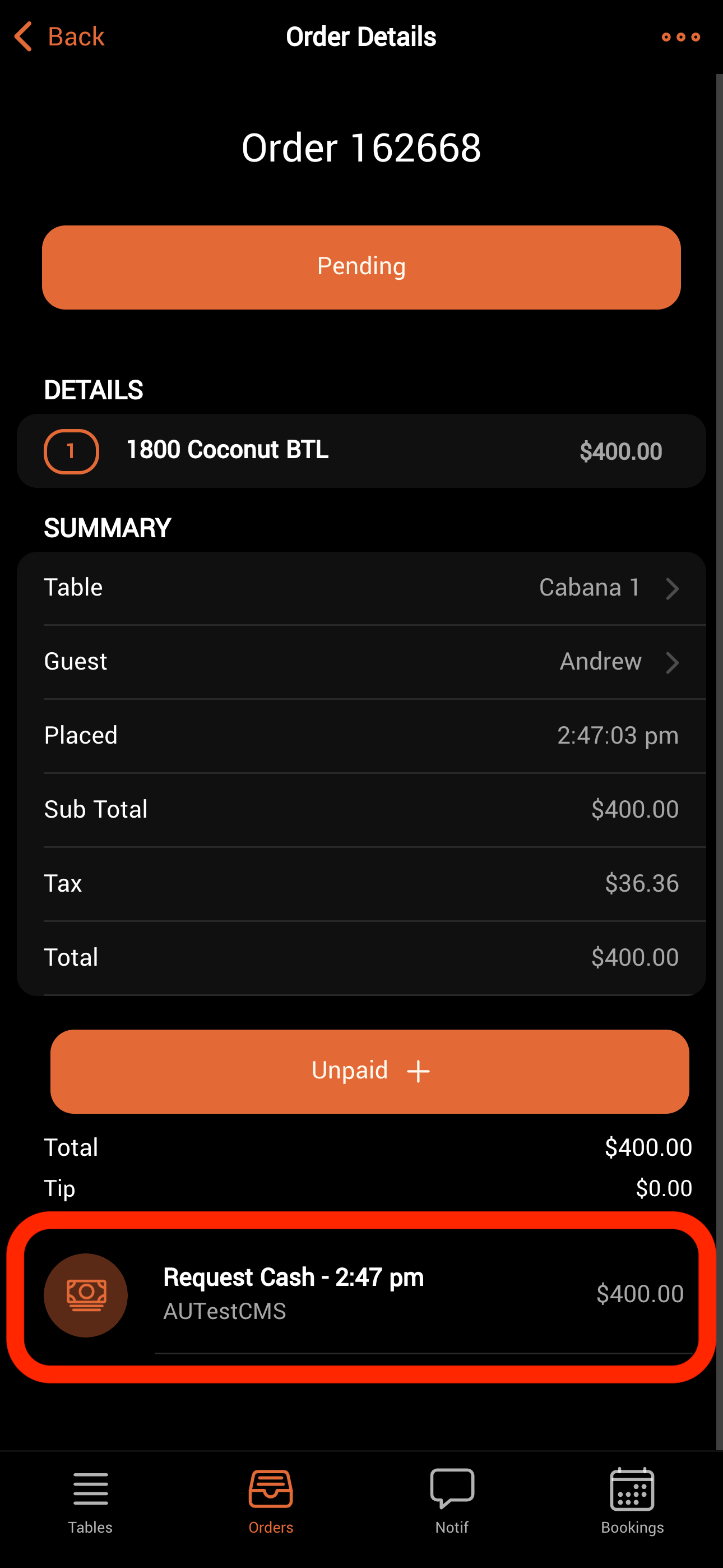
Scroll to the bottom of the page to see the list of transactions.
ADDING PAYMENTS
To add a payment:
Tap the order card to view order details.
Tap the “Unpaid +” button.
Select a payment method.
If multiple payment types are needed, tap “Split Payment” in the top right corner.
Available Payment Methods
Payment Type
Function
Available To
Request Cash
Sends a notification to a manager to collect cash.
Waiter, Manager
Take Cash
Confirms that cash has been accepted for the order.
Manager
Request Card
Sends a notification to a manager to collect a card payment and mark it as received.
Waiter, Manager
Take Card
Confirms that a card payment has been accepted for the order.
Manager
Card Reader
Sends the transaction to a connected Stripe or Dojo terminal.
Waiter, Manager
Comp
Processes the order without collecting payment.
Manager
Request Comp
Requests manager approval to process the order without payment (approval required via DQ).
Waiter, Manager
QR Pay
Accepts payment via Stripe Link.
Waiter, Manager
Tap to Pay
Accepts payment via card or digital wallet.
Waiter, Manager
Add to Tab
Adds the order to the guest’s tab for later payment.
Waiter, Manager
Prepaid
Confirms that payment was collected outside of the DQ system.
Waiter, Manager
REFUND OR CHANGE A PAYMENT
If you have the [Accept Payments] permission, you can refund and reprocess a payment.
To refund a payment:
Locate the order you want to adjust.
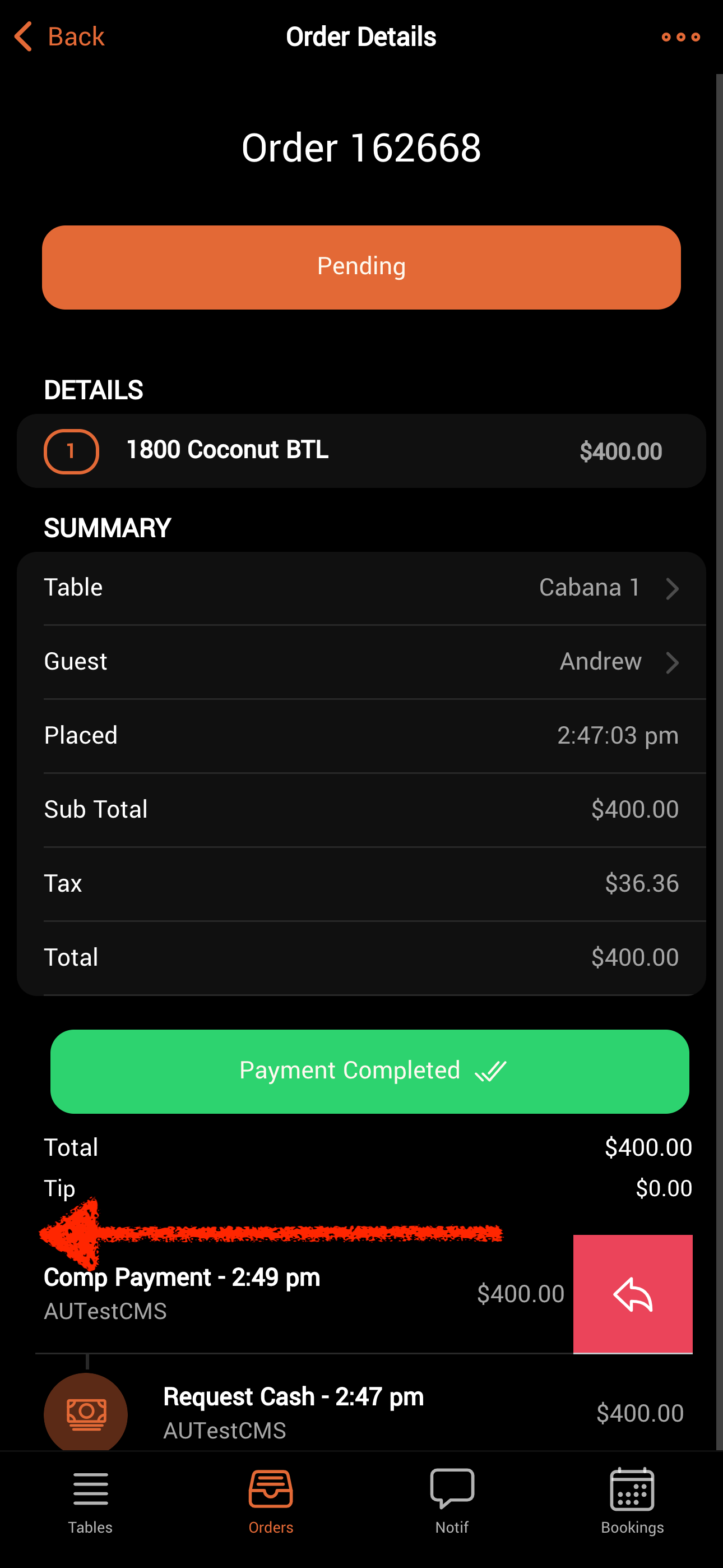
Tap the order card and scroll down to the list of transactions.
Swipe left on the relevant transaction and tap the red “reverse” button.
The payment will be removed (and refunded if appropriate), and you can then add a new payment as described above.
Was this helpful?