
Events
Events are one-off or recurring experiences for which bookings can be made. This section covers the creation and management of events.
Creating Events
Go to the Profile tab by tapping the icon at the top left of the Tables page.
Tap ”Manage Events” and select "+"
Provide the following information.
Property | Description | Required |
|---|---|---|
Event Name | The Title of the Event | Yes |
Event Description | The public facing description of the event. | Yes |
Date & Time | The date and time of the event | Yes |
Available Guest Lists | The Guest lists you wish to be visible available for the event. | No |
Event Image | The Image you wish to use on the Wallet Pass and Public booking page. If blank, your venue logo will be used. | No |
Once saved, a unique event Link is created for our event. You can copy URLs for individual events by tapping on "Event Link" button on each event page.
Bookings Site
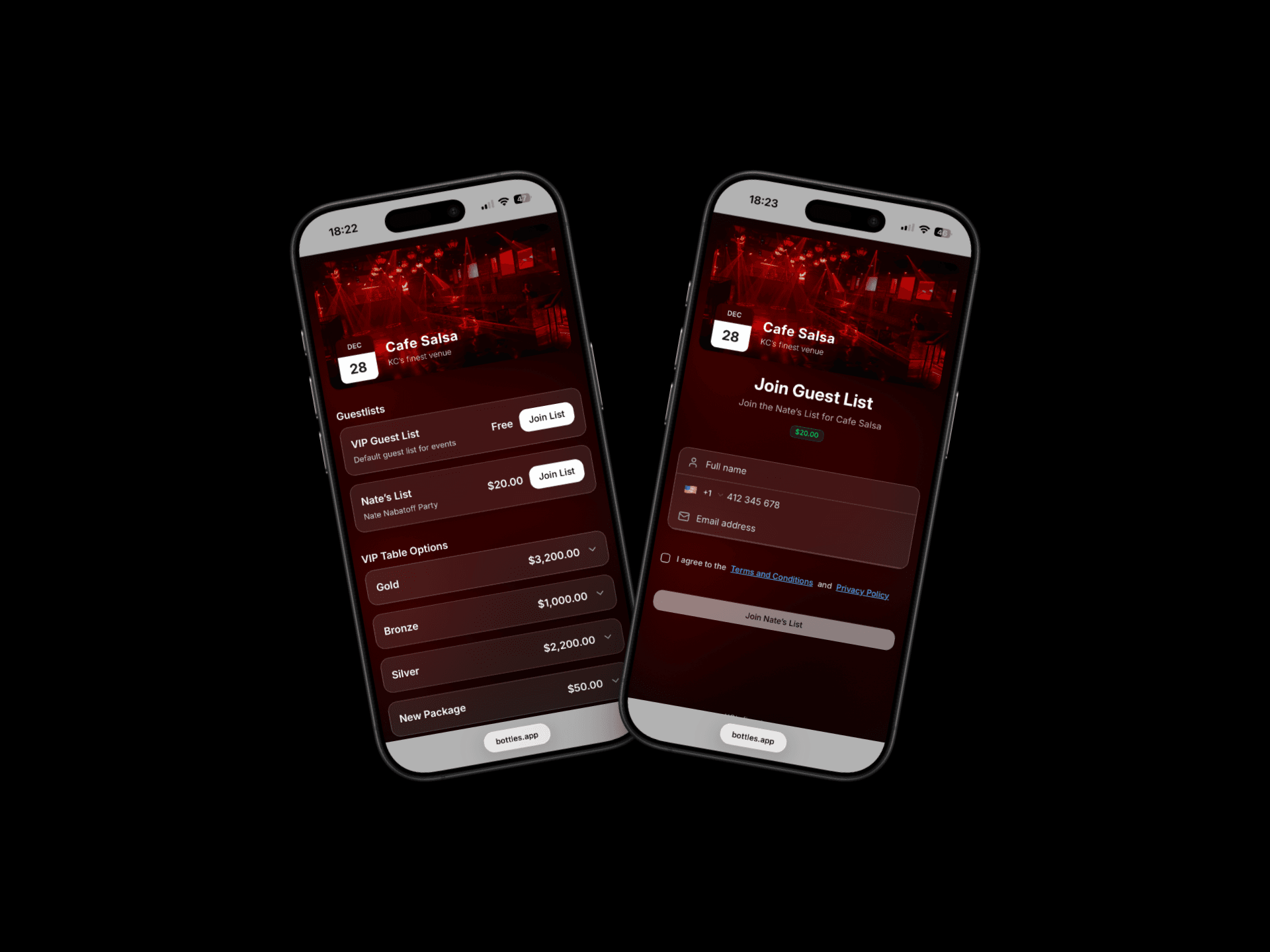
Each time you create an event, the event will be displayed on your public bookings site. The site will show any packages and guest lists you have made available for the event.
To view your Bookings site
Go to the Profile tab by tapping the icon at the top left of the Tables page.
Tap ”Bookings Site”
The URL will be copied to your device clipboard. Bookings are hosted on https://bottles.app/v/[Venue Name]
You can copy URLs for individual events by tapping on "Event Link" button on each event page.
Deleting Events
To delete an events:
Go to the Profile tab by tapping the icon at the top left of the Tables page.
Tap ”Manage Events” and long press the event you wish to delete.
Tap "Delete Event"
Was this helpful?