
Guests & Guest Data
Getting closer to your customers by creating and inspecting guests
DQ provides a powerful guest database that brings together insights from every staff and guest interaction at your venue.
Creating Guests
Guests can be created in several ways, the most common is through the booking process: When a booking is made, the guest is automatically created using the booking information or guest list.
To create a guest manually (without a booking), visit the Guests page. Click the
New Guestbutton at the top right of the page, and enter the guest’s details.
Property | Description | Required |
|---|---|---|
Name | Full name of the guest | Yes |
Phone | Phone number | Yes |
Email address | No | |
Gender | Guest’s gender | No |
Notes | Notes for future reference | No |
💡Always add a guest’s phone number—DQ uses this to prevent duplicate records.
Guest Metrics
Guest metrics are generated from interactions recorded in DQ and can help you answer questions such as:
Who they book tables with
How much they spend (including bookings, upsells, tips)
How often they visit
When they first and last attended
Which events they attended (as a booker or a guest)
What types of events they prefer
What they consume (brands/products and quantities)
Lifetime spend and percentile
Spend per visit
Frequency of upgrades or upsells
When they stop attending (churn)
Custom tags like “Banned” or “Artist”
Number of guests they bring (by gender)
Relationships with other guests
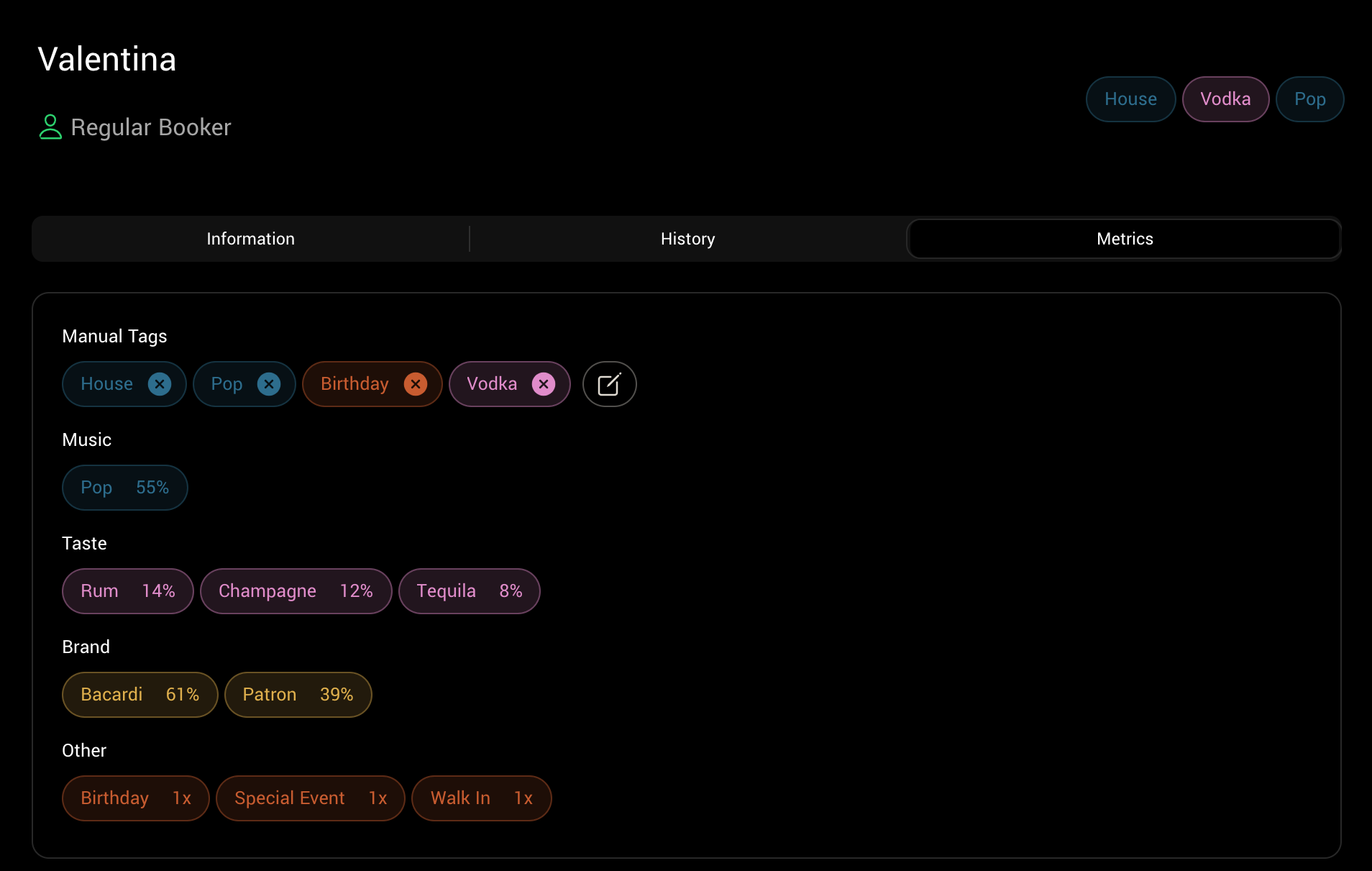
These insights are based on all guest interactions with the DQ system—bookings, guest list management, ordering, payments, and more.
You can create as many tags as you like, but we recommend limiting each tag type to around 10. Tags provide a high-level overview of a guest’s profile and preferences.
💡 From a guest’s profile, you can click on any tag to see why it was applied and how it was calculated.
Guest History
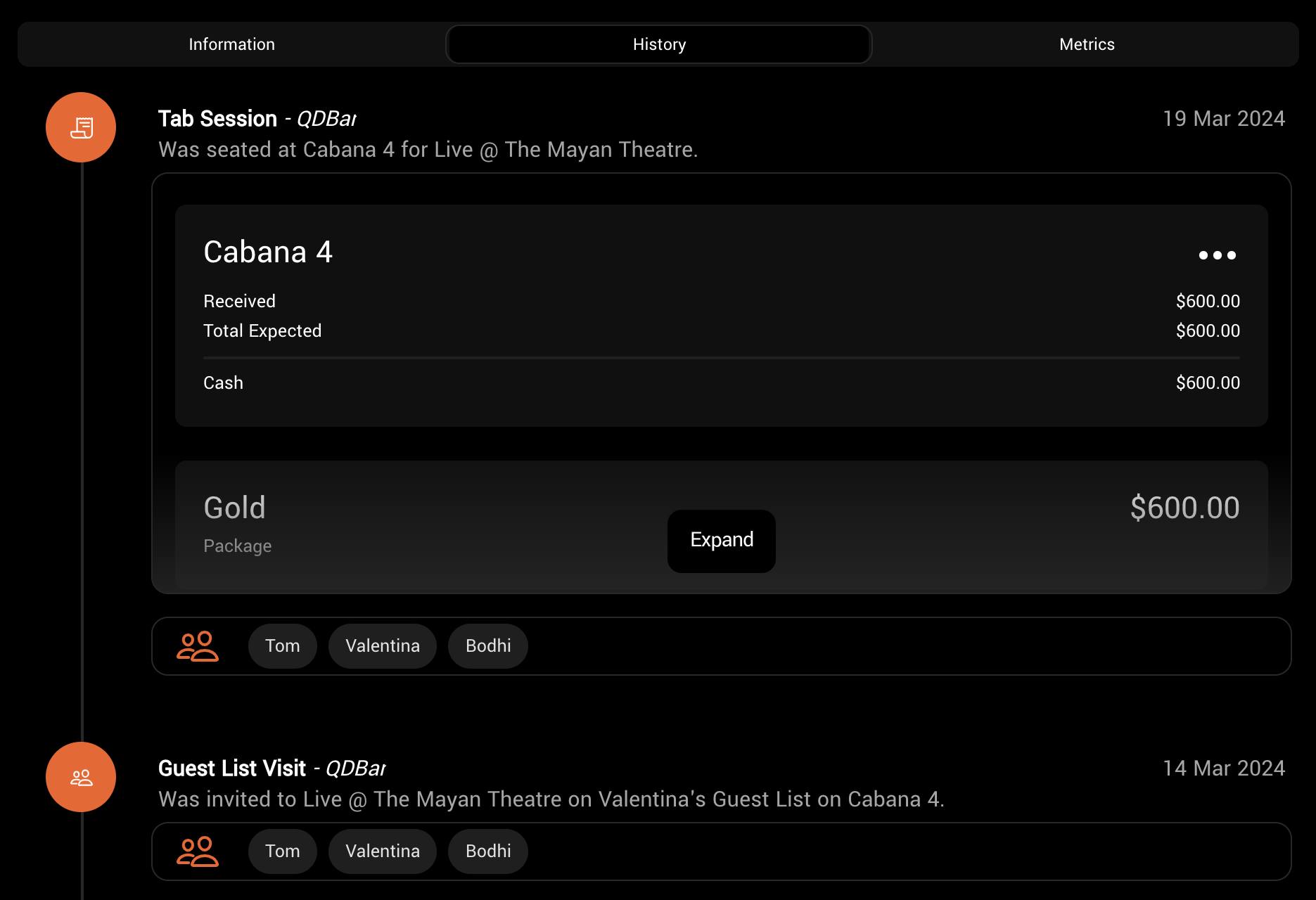
The Guest History tab displays a timeline of a guest’s full activity at your venue—including bookings, orders, and guest list entries. This is ideal for understanding their past engagement.
You can also view a breakdown of previous receipts and copy receipt links if needed.
💡 DQ syncs guests across linked venues, so multi-site operators can view guest history across all locations.
Status Types
DQ automatically assigns a Status to each guest based on their behavior and activity. This helps staff quickly identify key segments such as VIPs, new customers, or churned guests.
Status | Description |
|---|---|
Regular Booker | Regularly attends your venue as a booker |
New Booker | A first-time booker |
Churned Booker | A booker who hasn’t returned in twice their usual visit interval |
Returning Booker | A booker returning after an extended break |
Regular Guest | Regularly appears on guest lists at your venue |
Churned Guest | A guest who hasn’t returned in twice their usual visit interval |
New Guest | A first-time guest |
Returning Guest | A guest returning after an extended break |
💡 You can filter guests by status in the search panel and view status statistics on the dashboard.
Explore metrics like upsell ratios, guest retention, and more.
Guest Search
DQ lets you search for guests using use natural language to find guests who meet specific criteria.
This is particularly useful for:
Identifying guests who need re-engagement
Finding invitees for brand-specific events
To use it, type your query into the search bar. DQ will apply the relevant filters and show matching guests.
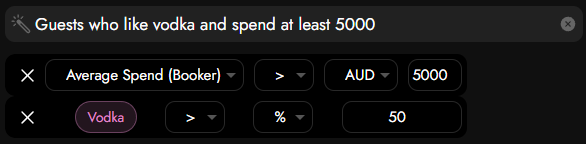
You can filter by any available guest metric or tag, including their relationships with other guests or event types.
Was this helpful?