
Ordering Flow
A quick overview of ordering and requesting included items.
GETTING FAMILIAR WITH A BOOKING
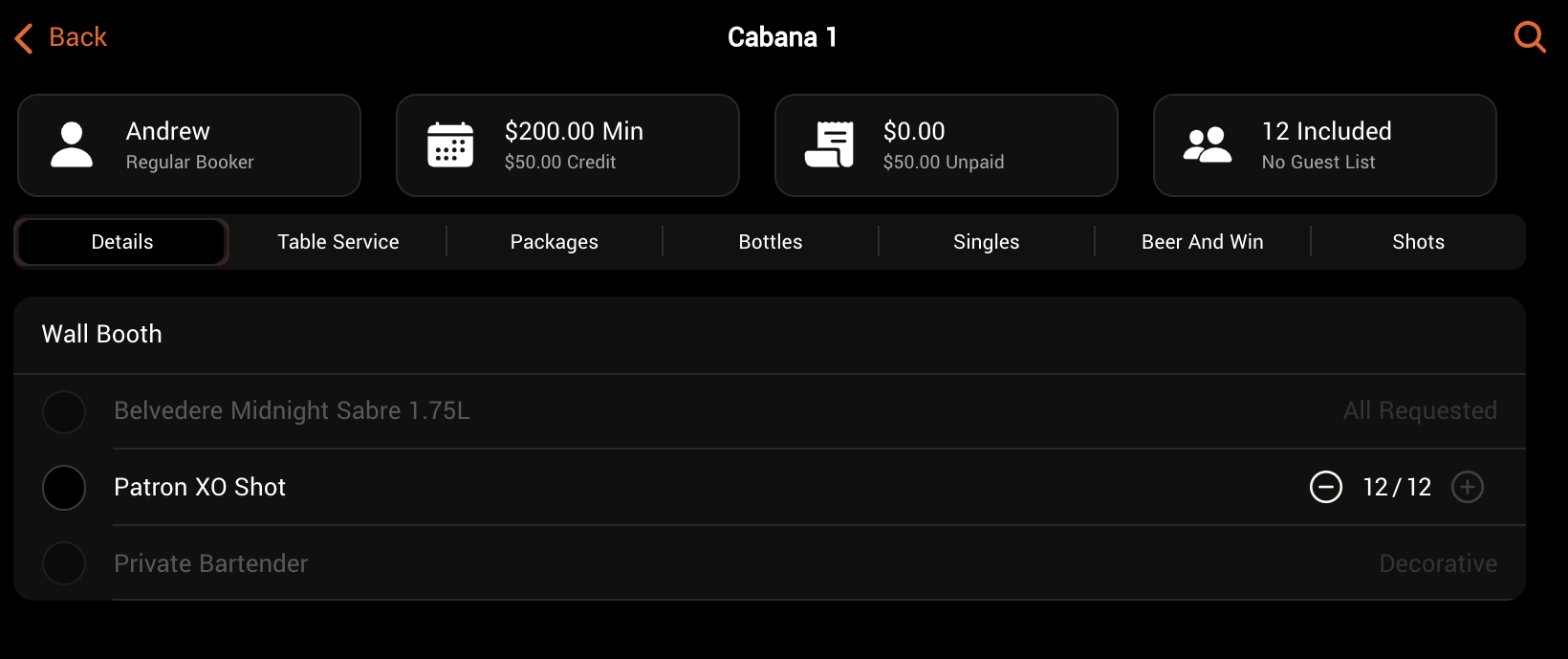
Tile 1 – Guest Summary: If a guest is selected, key information is displayed here. If a guest hasn’t been assigned to the booking, tap this tile to select or create one.
Tile 2 – Booking Summary: Displays essential booking information. Tap this tile to access booking setup, payments, and guest list details.
Tile 3 – Tab: Shows the booking’s total spend and payment status. Tap to view the live receipt.
Tile 4 – Guest List: Indicates how many guests have arrived vs. how many are included in the package. Tap to view the full guest list.
Details: Shows items included in the booking price. These can be requested at any time and do not add to the total cost.
Item Search: Search for specific items by name or tag.
Menu Categories: The top-level categories of items available for ordering or requesting.
REQUESTING PACKAGE ITEMS
If your venue uses packages, some bookings may include items that can be requested during the event. These items will appear under the “Details” category.
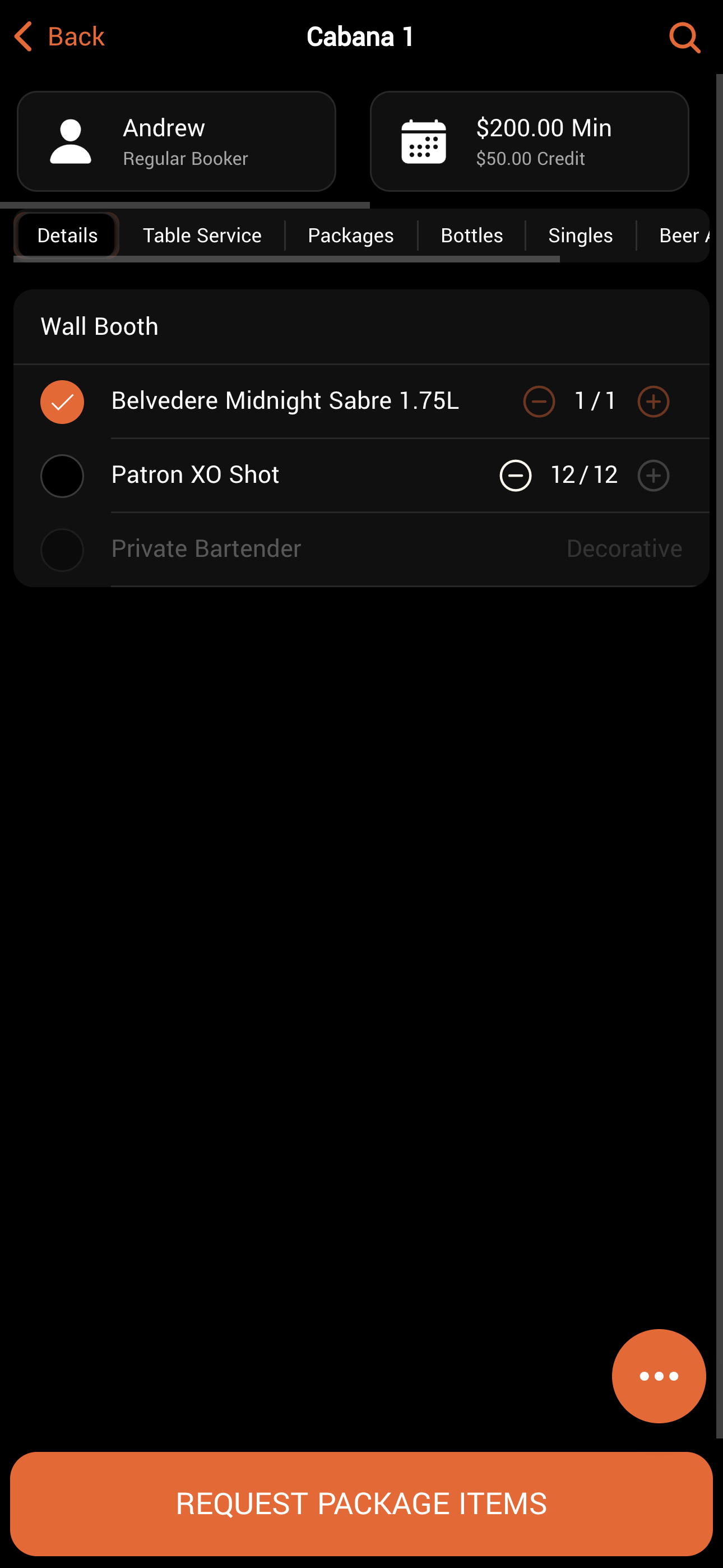
Depending on your venue’s flow, some or all included items may be requested when the guest checks in. Items not requested at the door remain available for order during service.
To request an included item:Tap the tick next to the item you wish to order.
If applicable, adjust the quantity (e.g., one of two bottles of champagne).
Tap “REQUEST PACKAGE ITEMS” at the bottom of the screen.
REQUESTING MENU ITEMS
During the event, tables may need additional service items like fresh glasses, ice, mixers, as well as food and beverages.⚠️ Stay alert to your table’s supply of glasses, ice, and mixers — these can become blockers to consumption and service.
To request items:
Browse the menu and add desired items to the cart.
Tap “View Cart” at the bottom of the screen.
In the Cart screen, you can:
Adjust item quantities
Add notes by swiping left or right on an item
If payment is required, tap “Confirm Payment”. Otherwise, tap “Request Now”.
After placing an order, a banner at the top of the screen will confirm: “Your order was successful.”
PAYMENTS
Some items require either payment or a record of payment intent. Accurately logging payment ensures your colleagues know how to proceed after the order is placed.
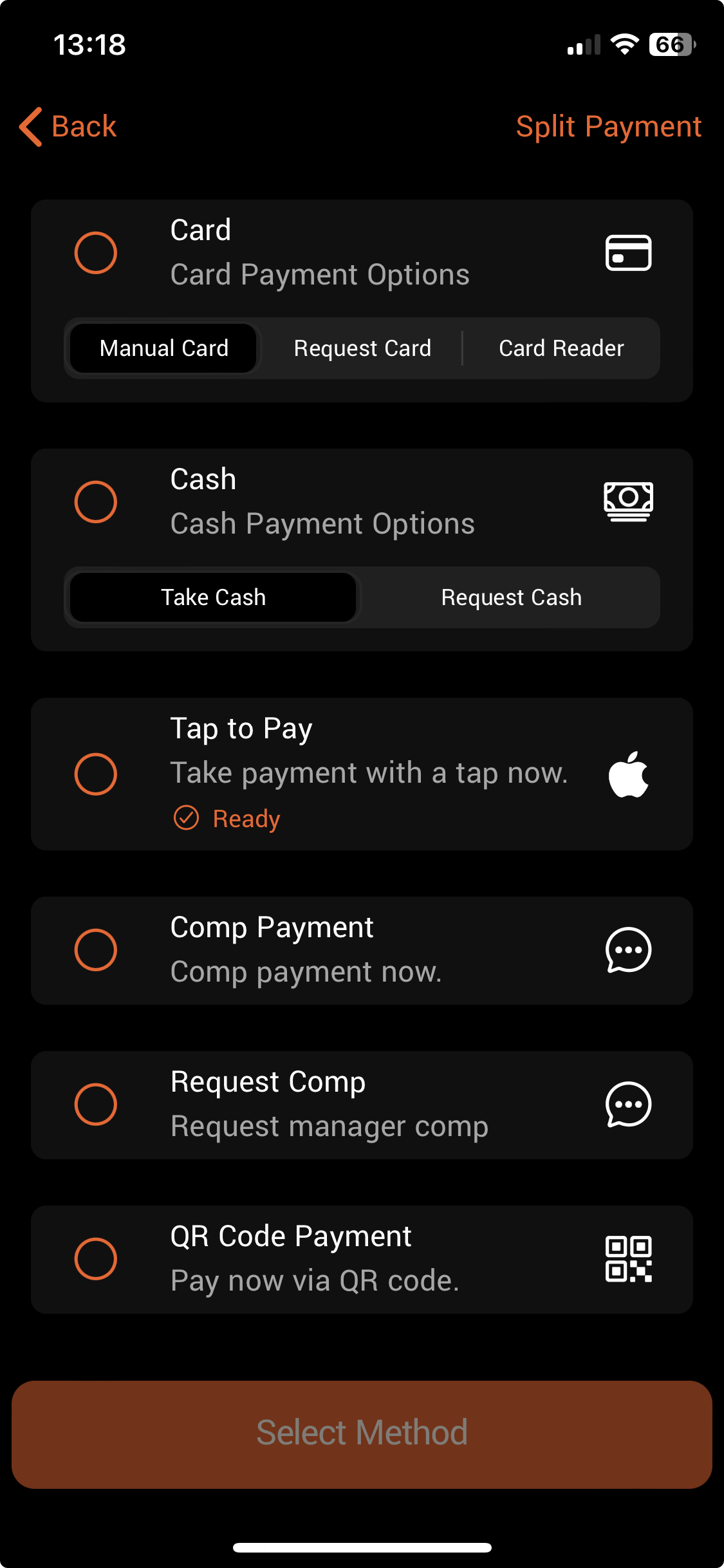
Payment Types:
Payment Type
Function
Available to
Request Cash
Payment not yet collected. Notifies a manager to collect cash.
Waiter, Manager
Take Cash
Confirms that cash has been collected.
Manager
Request Card
Payment not yet collected. Notifies a manager to collect a card payment and mark it as received.
Waiter, Manager
Take Card
Confirms that a card payment has been collected.
Manager
Card Reader
Sends the payment request to a connected Stripe or Dojo terminal.
Waiter, Manager
Comp
Processes the order without collecting payment.
Manager
Request Comp
Requests manager approval to process the order without payment (requires DQ manager approval).
Waiter, Manager
QR Pay
Accepts payment via Stripe Link.
Waiter, Manager
Tap to Pay
Accepts payment via card or digital wallet.
Waiter, Manager
Add to Tab
Adds the order to the guest’s tab for later payment.
Waiter, Manager
Prepaid
Confirms that payment was made outside of the DQ system.
Waiter,
ManagerGETTING HELP
DQ has built-in support request options for needs that can’t be met directly through the menu.
You’ll find a three-dot menu at the bottom right of both the menu and booking screens. From here, you can initiate support requests.
Available Prompts
Prompt
Action
Can Be Accepted By
Call Runner
Notifies runner users that help is needed at a specific table. Support options can be customized via the CMS.
Runner
Call Manager
Notifies manager users that help is needed at a specific table or door.
Manager
Call Security
Notifies both runners and managers that security is required at a specific table or door.
Manager
Was this helpful?